

Training guide 培训指南
User Flow: Business Partner: Onboarding to the amfori Platform
用户流程:商业伙伴:amfori 平台使用指引
Learning Objectives
学习目标
o Understand the process to activate user and company account on the amfori platform
了解在 amfori 平台上激活用户和公司账户的流程
Context:
背景:
• amfori have created a new Platform. All data from BSCI and BEPI will be migrated to this
platform.
amfori 创建了一个新平台。所有来自 BSCI 和 BEPI 的数据均将迁移至该平台。
• You will receive an email from amfori that is an invitation to join the amfori Platform.
您将收到一封来自 amfori 的电子邮件,邀请您加入 amfori 平台。
• You may receive multiple emails like this from each member that you are linked with.
您关联多位会员,就会收到多封这样的电子邮件。
• It is only necessary to create your profile once.
个人资料只需创建一次。
• After that, you need to Accept or Reject the proposed links with other Members by clicking
on the link in the email.
之后您要点击电子邮件中的链接,接受或拒绝与其他会员的关联建议。
Steps to onboard on to the new amfori Platform for the first time.
首次使用 amfori 新平台的步骤。
1. You will receive an email from amfori, which will resemble this screen:
您将收到一封来自 amfori 的电子邮件,类似以下内容:
It will be sent to the main contact email address from the BSCI platform.
它将从 BSCI 平台发送到主要联系人的邮箱地址。
Training guide 培训指南
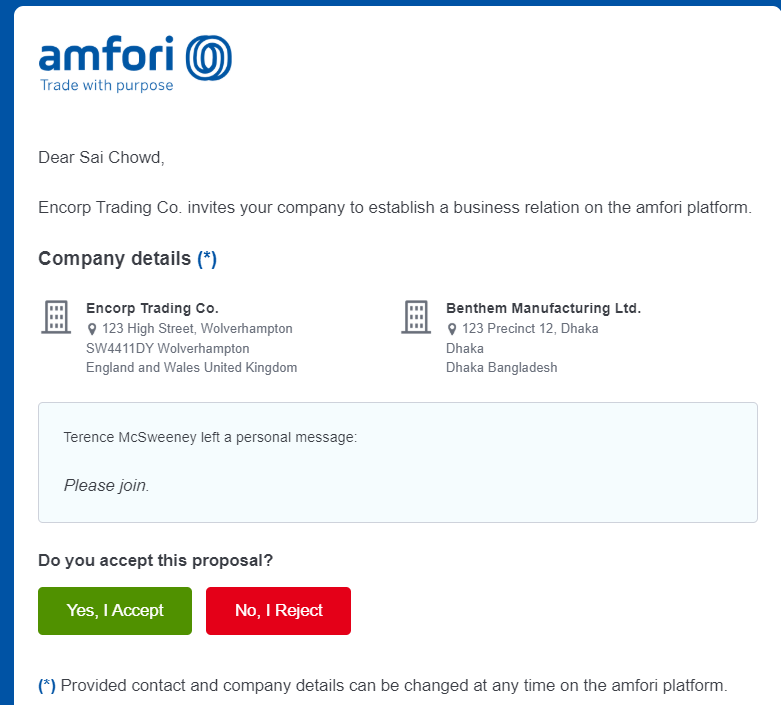
2. Click ‘Yes, I Accept’ if you recognized the member’s name.
如果您认识会员的名字,点击 Yes, I Accept(是,我接受)。
You now see this screen
然后您将看到这个页面

3. For your first time doing this, you will see this screen. Click on ‘Register a New Company’ to register your company on the new amfori Platform.
Training guide 培训指南
首次操作时您将看到这个页面。点击 Register a New Company(注册新公司),在
amfori 新平台上注册您的公司。
You will then see the following screen:
此时将显示以下页面:
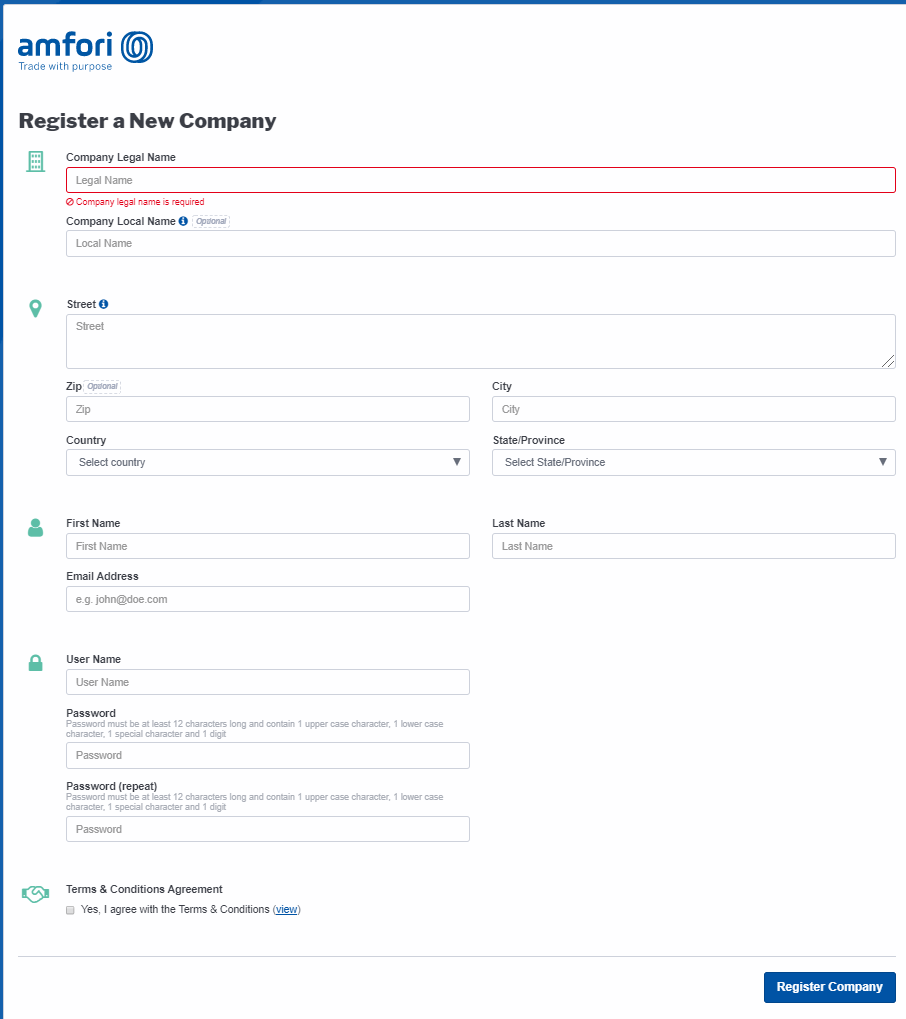
4. Enter your company information and your own details and click ‘Register Company’
填写公司资料和您的个人信息,然后点击 Register Company(注册公司)
• Note – make sure to record your login details so that you can login afterwards
备注 – 请务必记下您的登录信息,以便今后继续使用。
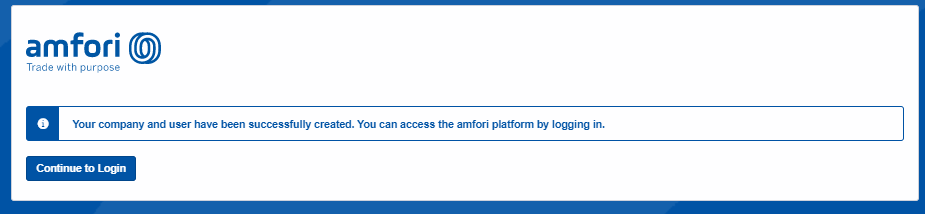
You will now see the success message to confirm your company and user profile has
been created.
现在您可以看到一条成功完成的消息,确认您的公司和用户资料已创建完毕。
Press ‘Continue to Login’
点击 Continue to Login(继续登录)
Training guide 培训指南
5. Now, login to the amfori Platform.
现在登录 amfori 平台。
Training guide 培训指南
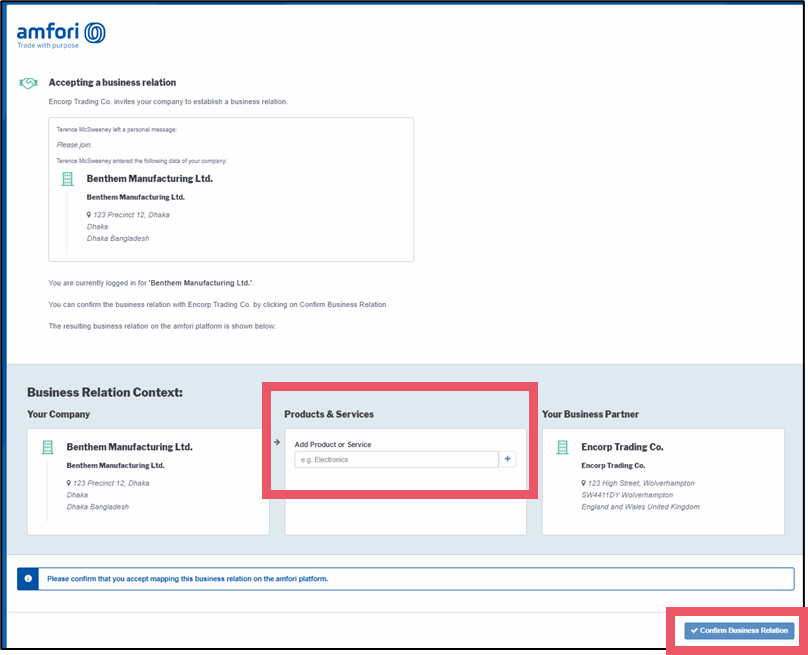
You will now be requested to confirm your link with the Member who sent you the email.
现在系统将要求您与向您发送邮件的会员确认关联。
6. Enter the product(s) or service(s) that you provide to this Member. When done, click
‘Confirm Business Relation’
填写您为该会员提供的产品或服务。完成后,点击 Confirm Business Relation(确认业
务关系)
You will now see this success message.
现在您可以看到一条成功完成的消息。

7. Click ‘continue to the amfori platform’
点击 continue to the amfori platform(继续访问 amfori 平台)
Once logged in, you must now Classify your company. This is a necessary step before your profile will be made fully active.
登录后,您必须马上指定您的公司类别。这是必要步骤,之后您的资料才会完全激活。Training guide 培训指南
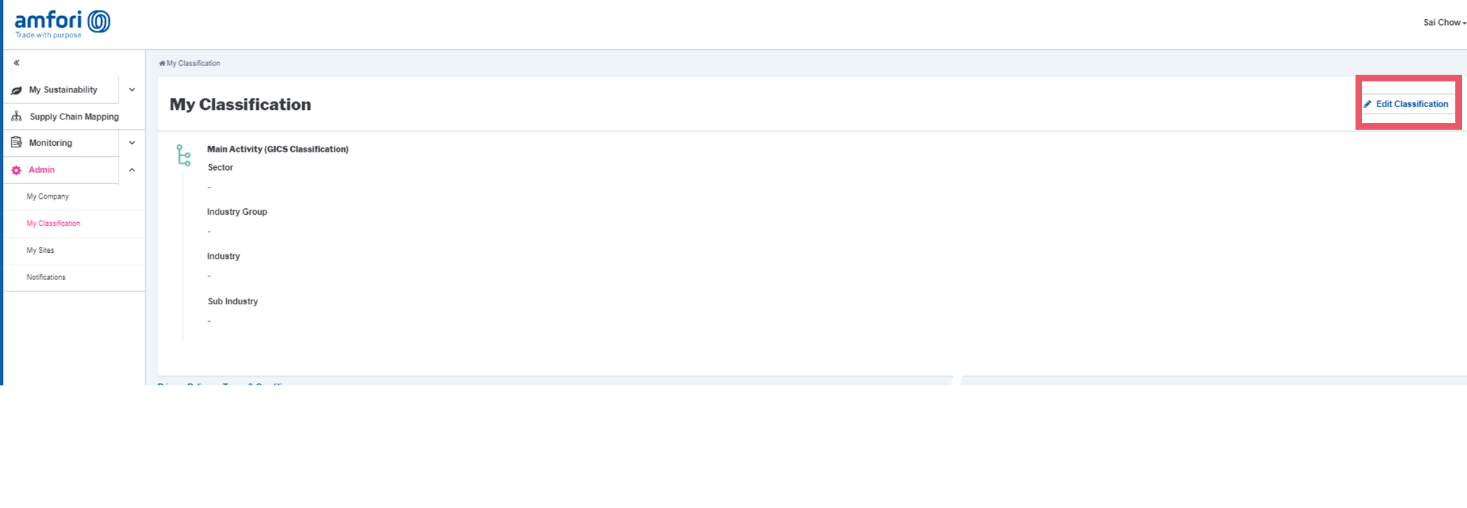
8. Select ‘My Classification’
选择 My Classification(我的类别)

You are now brought to the My Classification screen.
此时您将进入 My Classification (我的类别)页面。
9. Click ‘Edit Classification’ on the right-hand side
点击右侧的 Edit Classification (编辑类别)
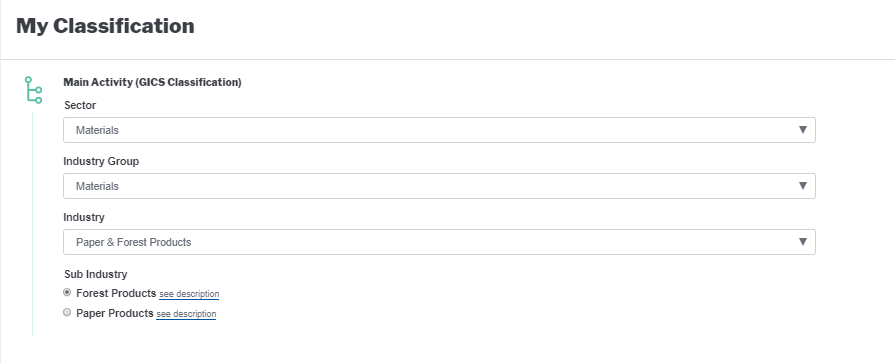
10. 为您的公司选择最合适的类别。完成后,点击 Save Classification(保存类别)。(备注 – 类别说明请见 GICS 网站。)
When done, you will see this success message:
完成后您可以看到一条成功完成的消息:
Training guide 培训指南

You have now successfully activated your company and user profile on the amfori Platform.
现在您已成功激活了 amfori 平台上的公司和用户资料。
Steps - To accept other invitations
步骤 - 要接受其他邀请
If you have received multiple invitations by email, and you have now created your profile;
如果您已经收到多次电子邮件邀请,并且已经创建了您的个人资料;
1. Make sure you are still logged in
在登录的前提下
2. Go back to your email mailbox
返回您的电子邮箱
3. Find other invitation emails
找到其他邀请邮件
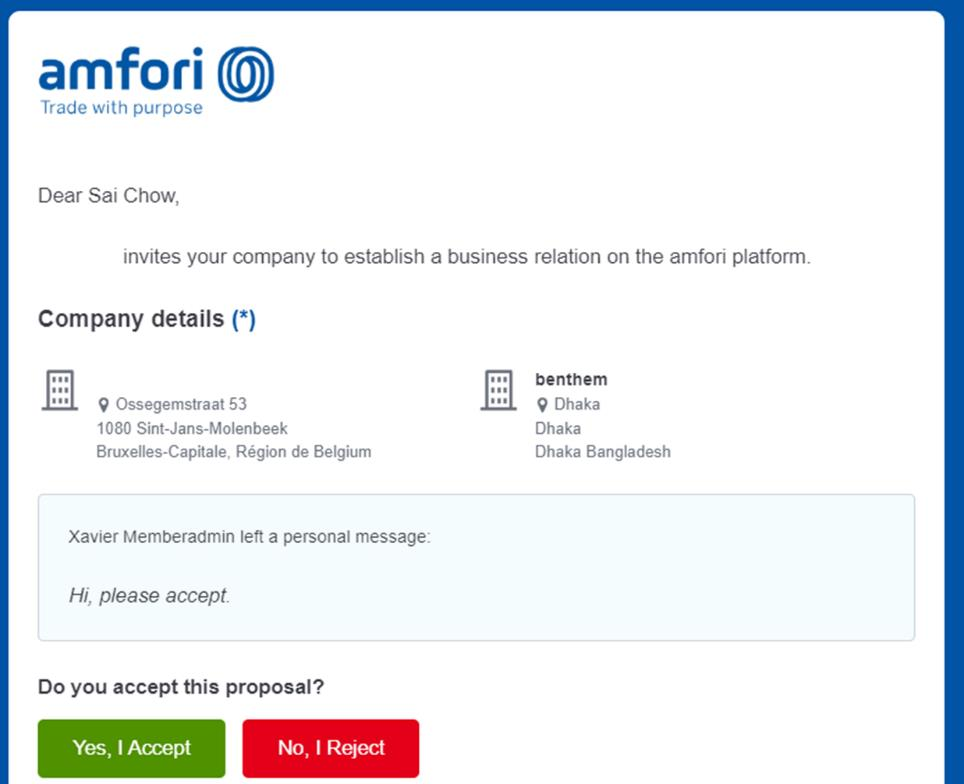
4. Click ‘Yes, I accept’
点击 Yes, I accept(是,我接受)
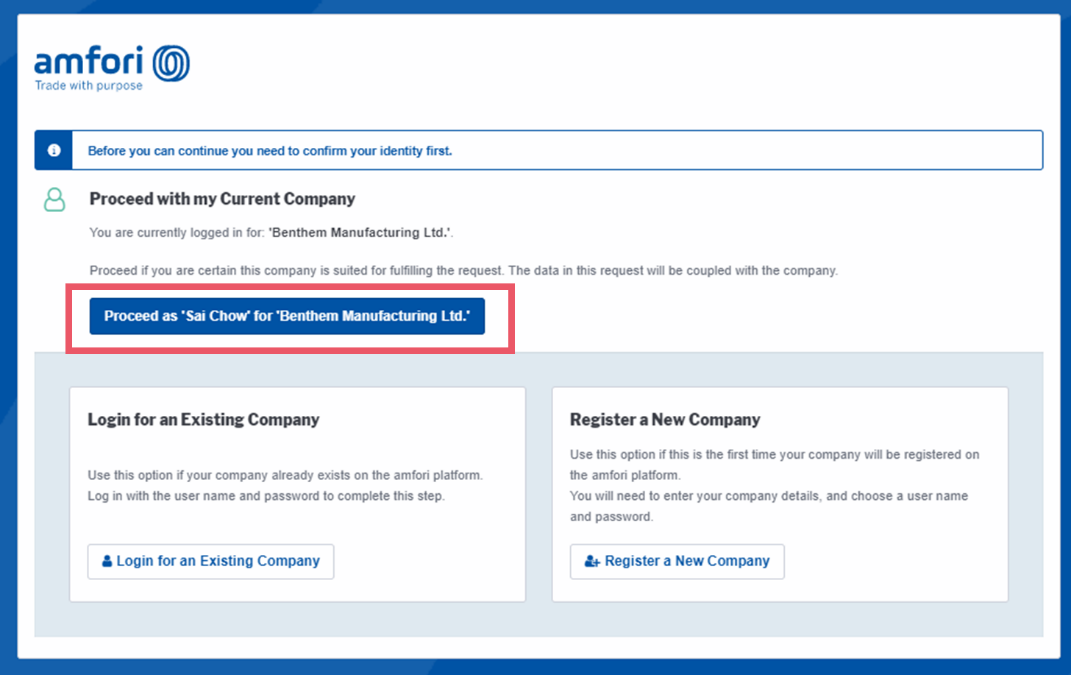
You will now see the following screen, asking if you wish to proceed with your current
logged in company, or to create a new company, or to log in again.
现在您将看到以下页面,询问您是否希望继续操作当前已登录的公司,还是创建新公
司,或再次登录。Training guide 培训指南
5. Select to Proceed with my current company
选择继续操作当前的公司
Again, you will be asked to confirm your business relationship with the Member.
系统将再次要求您确认您与会员的业务关系。
6. Specify which products or services you provide to them, and click the + sign (or press enter)
说明您为其提供的产品或服务,然后点击 + 号(或按回车键)
• Note – this functionality may change.
备注 – 这项功能可能会有所变化。
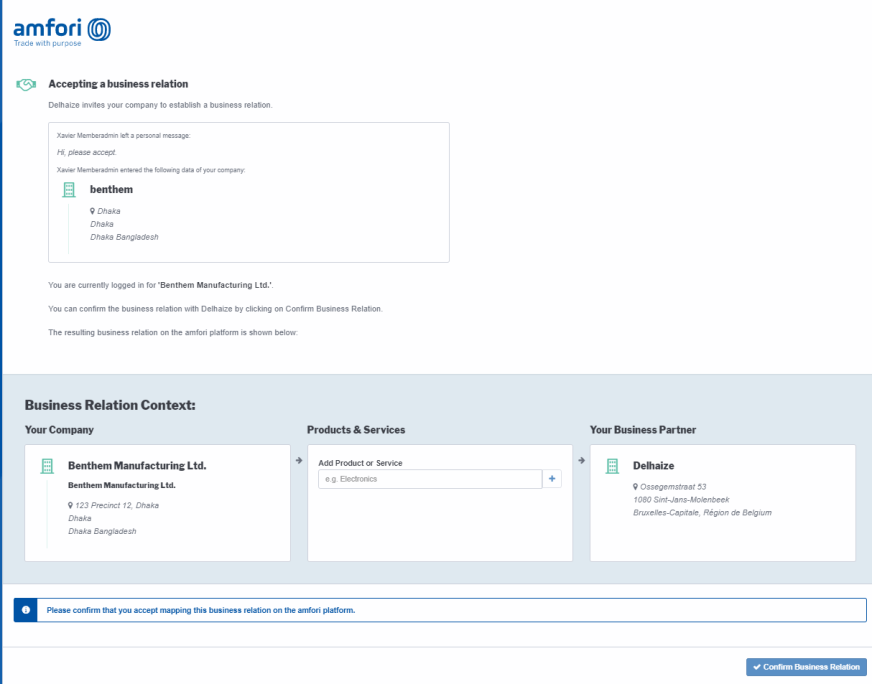
7. Click ‘confirm my business relation’
点击 confirm my business relation(确认我的业务关系)Training guide 培训指南
The proposal is accepted, and you return to the amfori platform.
提议被接受,您将返回 amfori 平台。
8. Repeat this process as many times as is needed, depending on how many Members have
requested to connect with you.
 您当前的位置: